> ## Documentation Index
> Fetch the complete documentation index at: https://docs.ironlabs.ai/llms.txt
> Use this file to discover all available pages before exploring further.
# Previous History
> How Foundry organizes, searches, and lets you reopen past chats.
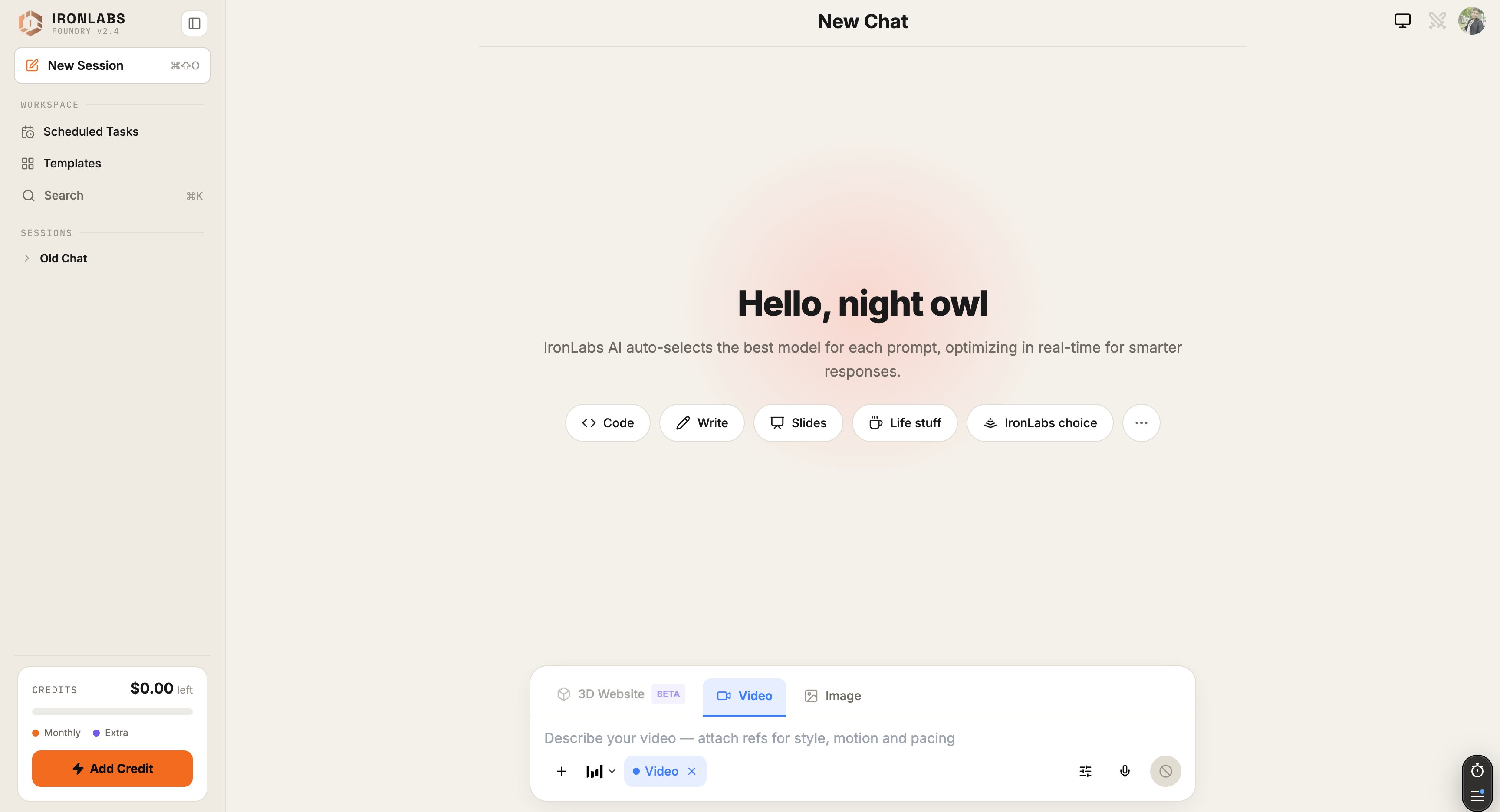
Every chat you start is saved automatically. Foundry groups them in the sidebar so the most recent stuff stays one click away.
 ## How chats are grouped
The sidebar shows three buckets, in this order:
| Bucket | What's in it |
| ------------------- | -------------------------------------- |
| **Recent** | Chats from today. |
| **Previous 7 Days** | Anything you touched in the past week. |
| **Older** | Everything else, oldest first. |
Each entry shows the chat title. Scheduled-task chats get an extra **unread badge** so a task that fired overnight is visible the moment you open Foundry.
## Search
Hit `⌘K` (Mac) / `Ctrl K` (Windows/Linux) anywhere to open global search. Type a phrase and Foundry filters the list to chats that contain it — title and body, across all buckets.
## Rename, pin, delete
Hover a chat in the sidebar to get the context menu:
* **Rename** — give it a memorable title (the default is auto-summarized from your first message).
* **Pin** — sticks it to the top, above Recent.
* **Delete** — removes it permanently. There's no trash.
## Resuming a chat
Click any chat in the sidebar to reopen it. Foundry preserves the **mode** (Chat / Image / Agent / etc.), the **active Sources**, and the **active Skills** as they were when you last left.
If a scheduled task ran while you were away, it appears as a new entry in **Recent** with an unread dot — click in and you'll see the task's run output.
## Tips
* **Pin work-in-progress chats** so they're never more than one click away.
* **Rename early** — the auto-title is fine, a custom title is better for search a week later.
## Limits
* Deleted chats can't be recovered.
* Search is title + body only — it doesn't search inside attached files.
## Related
Every shortcut, every context.
Tasks land in your chat history.
## How chats are grouped
The sidebar shows three buckets, in this order:
| Bucket | What's in it |
| ------------------- | -------------------------------------- |
| **Recent** | Chats from today. |
| **Previous 7 Days** | Anything you touched in the past week. |
| **Older** | Everything else, oldest first. |
Each entry shows the chat title. Scheduled-task chats get an extra **unread badge** so a task that fired overnight is visible the moment you open Foundry.
## Search
Hit `⌘K` (Mac) / `Ctrl K` (Windows/Linux) anywhere to open global search. Type a phrase and Foundry filters the list to chats that contain it — title and body, across all buckets.
## Rename, pin, delete
Hover a chat in the sidebar to get the context menu:
* **Rename** — give it a memorable title (the default is auto-summarized from your first message).
* **Pin** — sticks it to the top, above Recent.
* **Delete** — removes it permanently. There's no trash.
## Resuming a chat
Click any chat in the sidebar to reopen it. Foundry preserves the **mode** (Chat / Image / Agent / etc.), the **active Sources**, and the **active Skills** as they were when you last left.
If a scheduled task ran while you were away, it appears as a new entry in **Recent** with an unread dot — click in and you'll see the task's run output.
## Tips
* **Pin work-in-progress chats** so they're never more than one click away.
* **Rename early** — the auto-title is fine, a custom title is better for search a week later.
## Limits
* Deleted chats can't be recovered.
* Search is title + body only — it doesn't search inside attached files.
## Related
Every shortcut, every context.
Tasks land in your chat history.